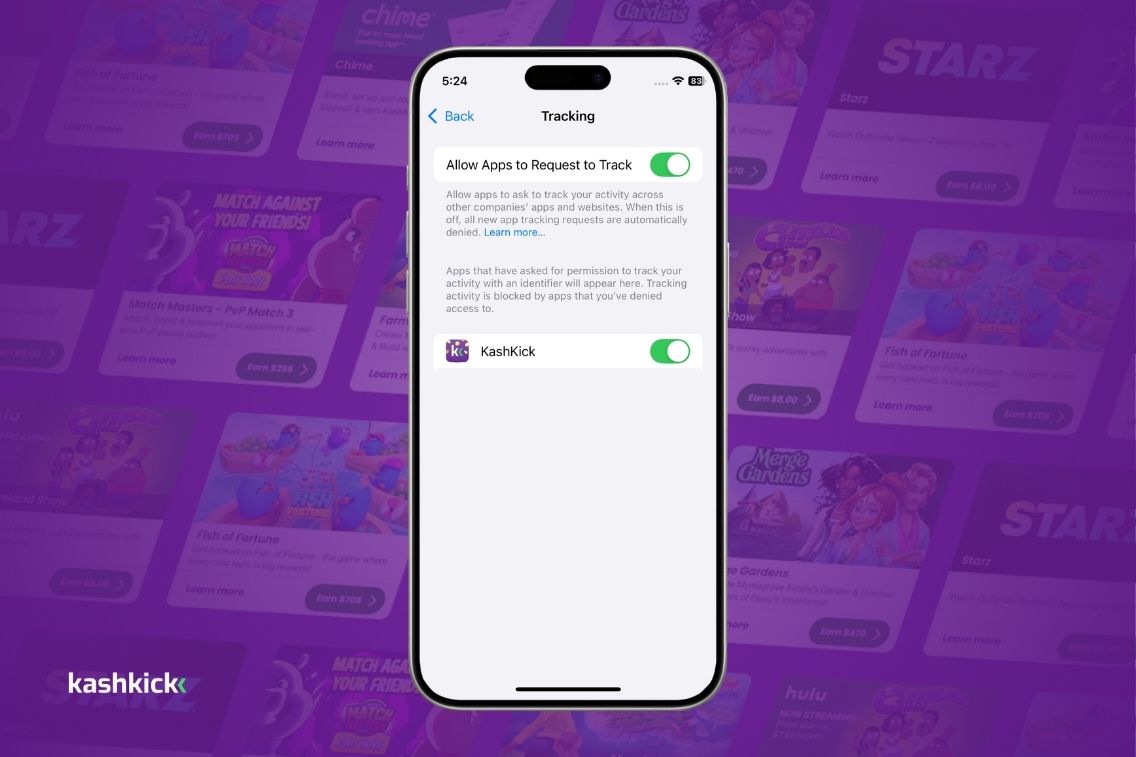

To track your progress on the games and offers on KashKick, tracking first needs to be enabled on your device.
Now, you may have some questions: Why do the games and offers on KashKick need tracking to be enabled first? What data can you collect from my mobile device? Are you secretly planning to use everyone’s app info to take over the world?
Now, obviously, we don’t want to take over the world, but we DO want to help you earn some extra cash! Read on to learn all the in and outs of tracking when it comes to KashKick.
What is tracking?
What the heck is “tracking,” you might ask? Well, tracking on your mobile device is essentially the ability for an app to track what you do on your phone. This can include things like websites and app activity, location and other digital spaces.
Companies use tracking to provide more targeted advertising, measure advertising effectiveness and (in our case) measure your progress through games.
Why do you need to turn tracking on?
You may still be wondering why you really need to turn on tracking. One of the best reasons is simply so that you can make more money. We use tracking so we can monitor your progress on games and offers and reward you appropriately.
Say a game pays out when you hit a certain level. Tracking is how we see you got there, so we can drop your reward into your account. You want to collect that reward, right? Then be sure to turn tracking on!
How do I turn on tracking?
Another important question is how to actually turn on tracking. For Android and iOS users, this may look a little different.
Note: Once tracking is on, leave it on so your reward progress keeps recording!
Start With the Tracking Health Tool
Before you go digging through settings, try the Tracking Health tool. You’ll find it in the account menu inside the KashKick app.
It checks your device setup and tells you what’s working and what isn’t. That’s usually faster than working through every setting yourself. If it flags something, the sections below walk you through how to fix it.
🤖 Android Users
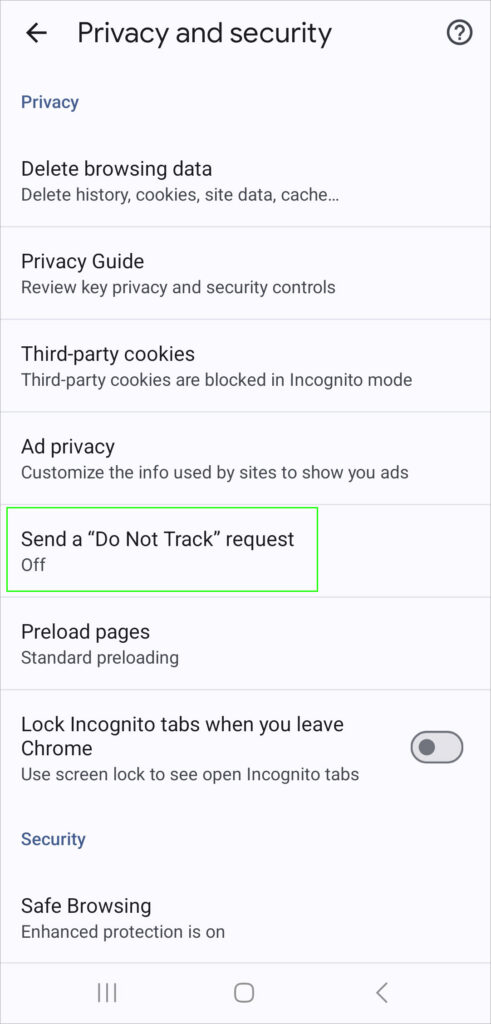
1. Open Google Chrome on your Android Device.
2. At the right of the address bar, hit More Settings.
3. Click on Privacy & Security.
4. Click on Send a “Do Not Track” Request.
5. Turn the setting OFF. (Note: It sounds backward to be turning this setting off, but we promise this is correct!)
Disable or Disconnect From VPN
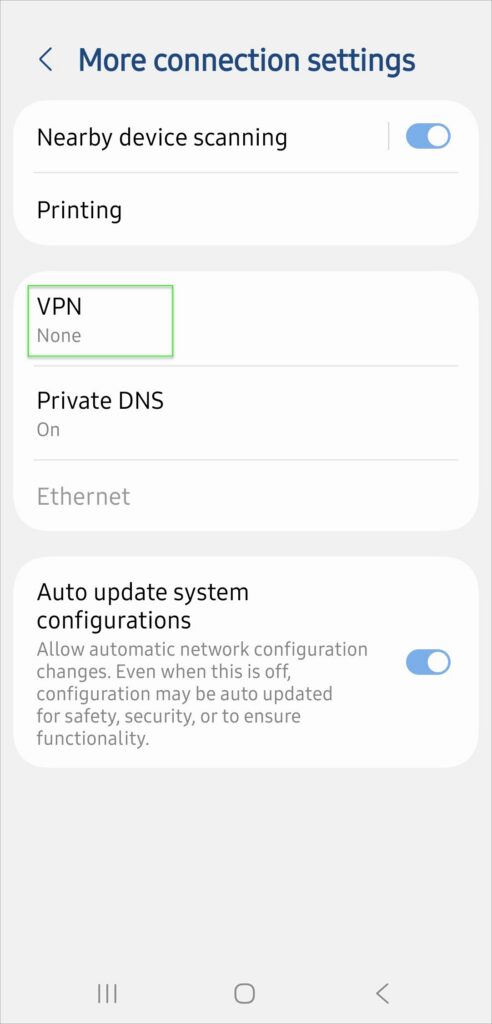
Using a VPN gets in the way of tracking, and our Terms of Service don’t support it. You might be connected without even realizing it, especially on a work network or while traveling. It’s worth a quick check:
1. Open Settings.
2. Find Connections or Network & Internet and open it.
3. Look for VPN settings. It may sit under More connection settings.
4. If it says “none,” you’re all set. If not, toggle it off or disconnect.
🍎 iOS Users: Enable “Allow Apps to Request to Track”
1. Open Settings on your device. (It’s the gear icon.)
2. Scroll to Privacy & Security and tap it.
3. Tap Tracking.
4. Tap Allow Apps to Request to Track.
5. Tap to enable KashKick.
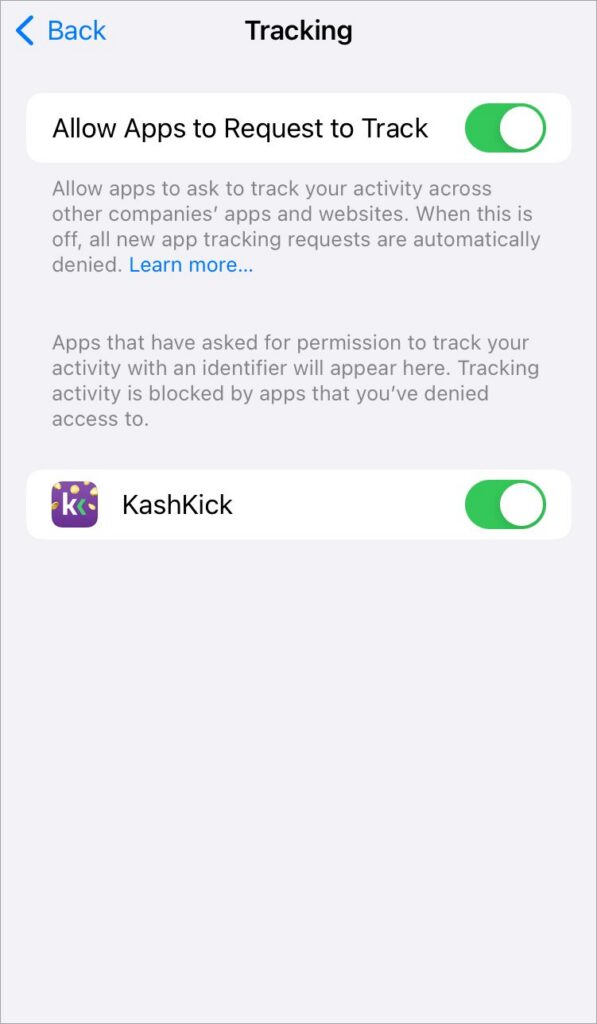
That last step matters. Turning on the device setting isn’t enough on its own. You have to switch KashKick on in the Tracking list, too. Don’t see KashKick in that list? Reach out to our Support Team and they’ll get you sorted.
One more thing: When you install a game or open a deal, allow tracking if asked. That’s how we keep up with your progress and pay you for it.
Disable or Disconnect From VPN
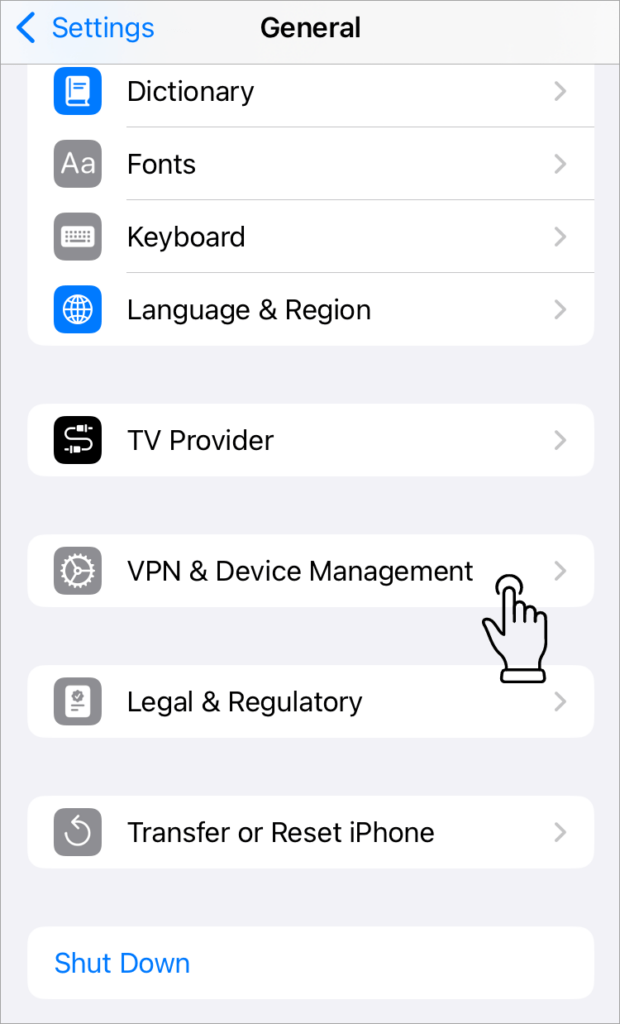
Same deal on iOS: A VPN can block tracking, and our Terms of Service don’t support it. Steps vary a bit by device, but generally:
1. Open Settings.
2. Tap General.
3. Scroll to VPN & Device Management and tap it.
4. Tap to disable your VPN.
Disable iCloud Private Relay
Here’s one that trips up a lot of iPhone members: iCloud Private Relay. It’s switched on by default if you’re running the latest iOS or you have an iCloud+ subscription.
Private Relay hides your IP address. That’s great for privacy in general, but it also stops us from seeing your activity. With it on, we can’t reward your progress, and we can’t verify your identity when you go to cash out.
Here’s how to turn off iCloud Private Relay:
1. Open Settings.
2. Tap your name at the top.
3. Tap iCloud.
4. Scroll to Private Relay and tap it.
5. Tap Turn Off Private Relay.
Skip the “Turn Off Until Tomorrow” option. It flips back on after 24 hours and can break your tracking all over again.
Troubleshooting: How To Know if Tracking Is Working and What To Do if It Isn’t
To know if tracking is actually working, here’s what you should do:
1. Open your KashKick account and go to Games, then tap the My Games tab. For deals, go to Deals and tap In Progress.
2. If tracking is working, your game or deal will show up there. Give it a few hours, or up to 24 hours at most.
3. Once you hit your first earning goal, your reward shows up in your account balance. Don’t see it? Reach out to our Support Team ASAP!
If your activity isn’t showing up in KashKick, tracking probably didn’t fire. Work through these four fixes in order.
1. Allow Tracking on Your Device
Turn tracking on for both KashKick and the game itself. Then run the Tracking Health tool in your account menu to confirm your settings.
2. Turn off Anything That Blocks Tracking
Disconnect from VPNs and proxies. Switch off ad blockers and browser extensions. On iOS, turn off iCloud Private Relay.
3. Stay on One Device
Keep playing on the device you started on, and make sure your connection is stable.
4. Check That You’re Eligible
Most offers are for new players only. You also need to have installed the game or signed up for the deal through KashKick.
Once you’ve updated your settings, give it a few hours and check your progress again.
Tracking still not working?
Reach out to our Support Team, and we’ll do our best to sort it out. One thing to know up front: We can’t manually adjust tracking. Your activity gets reported to us by our advertising partners, so it isn’t something we can edit on our end.
Take screenshots of your progress before you contact us. It genuinely helps us help you.
Here’s how to get in touch:
1. Sign in to your KashKick account.
2. Tap your profile picture in the top right.
3. Go to Support.
4. Scroll to the bottom, click “Contact Support” and fill out the form.
Someone from our team will follow up to get to the bottom of it.
What do we track?
With any app that you allow to track your data, there will always be privacy concerns for some users. This is why we want to be completely transparent about how we use your information.
The No. 1 reason we ask you to turn on tracking is to track your progress on games and offers. This way, when you complete the corresponding level or offer, you get your cash reward. In this instance, the information we see and use is related to the game level you are on or the offer you have downloaded on your phone.
We may also use forms of your data in other ways, such as location, age or gender-based data. KashKick uses this for advertising and targeting purposes for our games and offers.
For instance, if an offer is only available in a certain location or is appropriate for people with children, we’ll know which users to target for these offers. We also make note of things like your phone’s IP address to make sure that one person is not creating multiple accounts. (Remember: Cheating is not allowed!)
Basically, we use your data for tracking purposes related to offers and games—and to give you more offers that are tailored to you.
Set Yourself Up for Tracking Success
A few habits go a long way when it comes to tracking. Stick to these and tracking should work just fine:
- Always use KashKick links to install a game or sign up for a deal.
- Only take games and deals you haven’t tried before.
- Install on your main gaming device, then stay on it.
- Accept cookies and allow tracking whenever you get asked.
That second one matters more than it may seem. Most offers are for new players only, so a game you’ve played before usually won’t count.
We appreciate you taking the time to learn about tracking and how important it is to get your rewards. As with anything, if you are having any issues, please reach out to our Support Team, and they will have you up and running in no time!
Happy tracking!
FAQs: KashKick Tracking
Is tracking required to use KashKick?
Tracking isn’t required to use KashKick, but turning it on gives you the most rewarding experience. Without it, we can’t see your progress in games and deals, which means we can’t pay you for it.
How long does it take for tracking to show up?
Tracking usually shows up within a few hours, and within 24 hours at most. Check the My Games tab under Games, or the In Progress tab under Deals.
Why isn’t my game showing up in KashKick?
Your game might not be showing up for a few reasons. The most common ones are a VPN running in the background, iCloud Private Relay on iOS or a game you’ve played before. Run the Tracking Health tool first, then work through the fixes above.
Does KashKick track everything I do on my phone?
No, KashKick doesn’t track everything you do on your phone. We track your activity in the games and deals you take through us, so we can confirm you’ve hit your earning goals and reward you.
Can support manually credit my progress?
Support can’t manually credit your progress, because your activity gets reported to us by our advertising partners. They’ll still help you figure out what went wrong, so take screenshots of your progress before you reach out.